Data Connections
Data Connections is the default experience for working with databases and data warehouses in Positron. The Data Connections view appears in the primary sidebar. From there, you can create connections, browse tables and views in a tree, open tables and views in the Data Explorer, and generate ready-to-run connection code in Python, R, or ggsql. Driver extensions connect to databases directly, without a Python or R session.
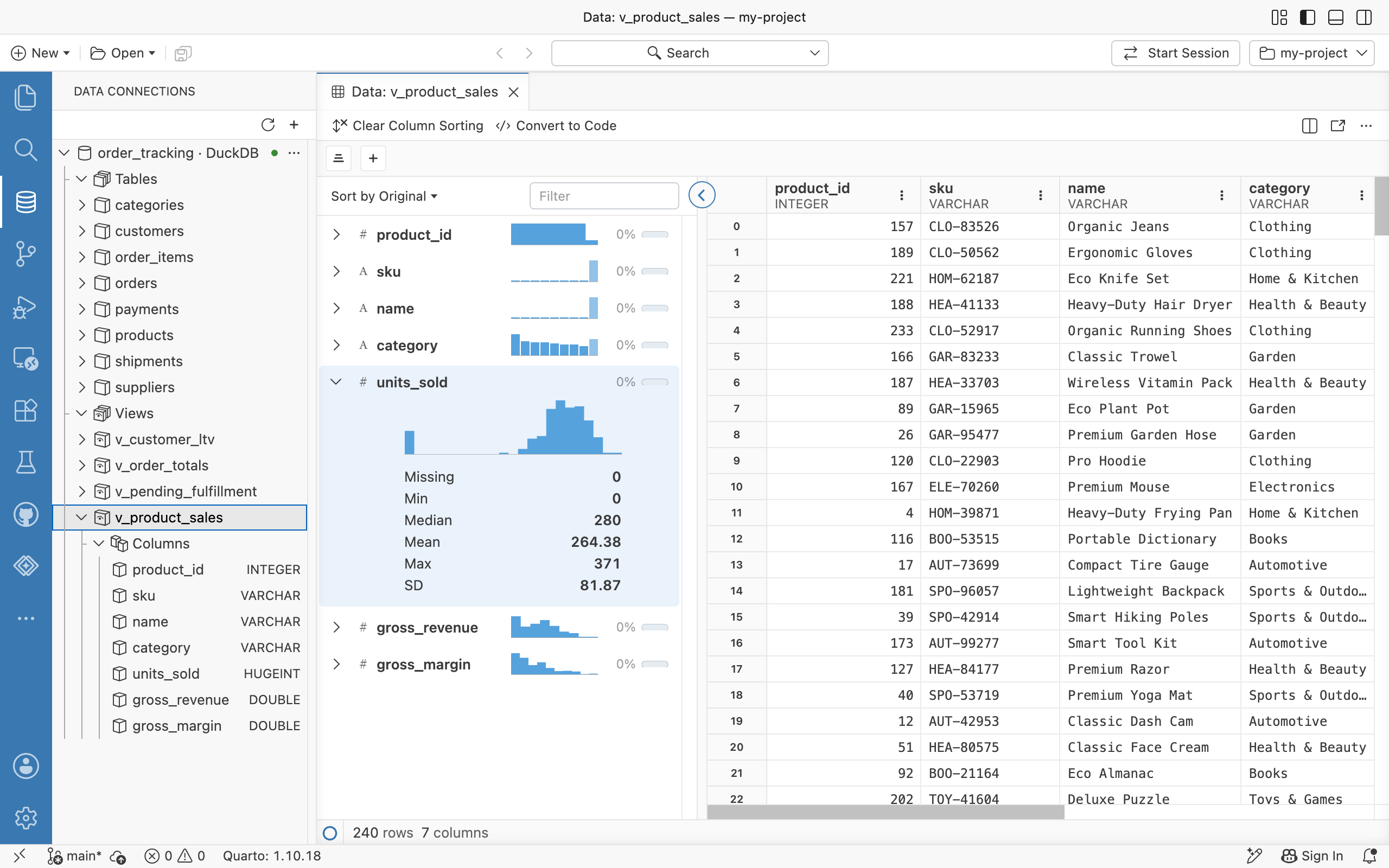
Data Connections supersedes the Catalog Explorer extension, which is no longer included, and the classic Connections pane, which shows connections opened by code in a Python or R session. To use the older Connections pane instead, set dataConnections.enabled to false and reload Positron.
Supported databases
Data Connections includes drivers for the following data sources:
| Data source | Notes |
|---|---|
| Databricks | Personal access token, OAuth user-to-machine (U2M), or OAuth machine-to-machine (M2M) authentication. On Posit Workbench, connections can use the managed credentials of the session. Browse Unity Catalog catalogs, schemas, tables, views, and volumes. |
| DuckDB | Connect to DuckDB database files, with a read-only option. |
| ODBC | Any database with a locally installed ODBC driver, via a configured data source name (DSN), server and driver details, or a connection string. |
| Posit Connect Pins | Browse and download pins published on Connect, and authenticate with environment variables, browser sign-in, or an API key. |
| PostgreSQL | User and password, local server (no password), client certificate (SSL), or connection string. |
| Redshift | User and password, or AWS Identity and Access Management (IAM) authentication for both Redshift Serverless and provisioned clusters, using the standard AWS credential provider chain. |
| Snowflake | External browser single sign-on (SSO), key pair, OAuth client credentials, programmatic access token, or a named connection from connections.toml. On Workbench, connections can use the managed credentials of the session. Browse tables, views, and stages. |
| SQLite | Connect to SQLite database files, with a read-only option. |
When you install a recognized ODBC driver, dedicated entries for databases such as MySQL, MariaDB, SQL Server, Oracle, Db2, Hive, Impala, Teradata, and BigQuery also appear when creating a connection. Positron automatically detects data sources already configured on your machine (for example, in odbc.ini or the Snowflake connections.toml file) and shows them in the tree with a Detected badge. When you edit connections.toml, the list of detected connections updates and open connections stay open.
Let us know which additional databases and warehouses you need in the Positron GitHub discussions.
To create connections and work with them, see Using Data Connections.
Settings
dataConnections.enabled: Choose the connections experience. Whentrue(the default), Positron shows the Data Connections view, whose drivers connect to databases directly, without a Python or R session. Whenfalse, Positron shows the older Connections pane, which shows connections opened by code in a Python or R session. Requires a reload to take effect.dataConnections.tree.showSingleSchema: Show a connection’s schema even when it is the only one, folded together with its group on a single row (for example “Schemas · public”). When disabled (the default), a lone schema is hidden and its tables and views are shown directly under the connection.