flowchart LR
subgraph "Host Machine"
p[Positron UI]
end
subgraph "Container"
p --> r[Positron Backend]
r --> py[Python Session]
r --> ark[R Session]
end
Dev Containers
Run Positron projects in ephemeral containers, for reproducible development and deployment environments and dependency isolation.
Positron has preview support for Development Containers. With dev containers, you can run your sessions inside ephemeral containers, giving you full control over the execution environment and encouraging reproducibility and isolation.
System requirements
Dev containers are supported in Positron Desktop on macOS, Windows, and Linux. However, the container itself must be built from a supported version of Linux. You also need a Docker-compatible container runtime, such as Docker Desktop or Podman.
Note that you cannot use dev containers in environments that are already remote, such as Remote SSH, WSL, and Positron Pro sessions on Posit Workbench.
Enabling
Important
Dev containers are an experimental feature and must be manually enabled. Opt in to the dev.containers.enable setting to enable the feature.
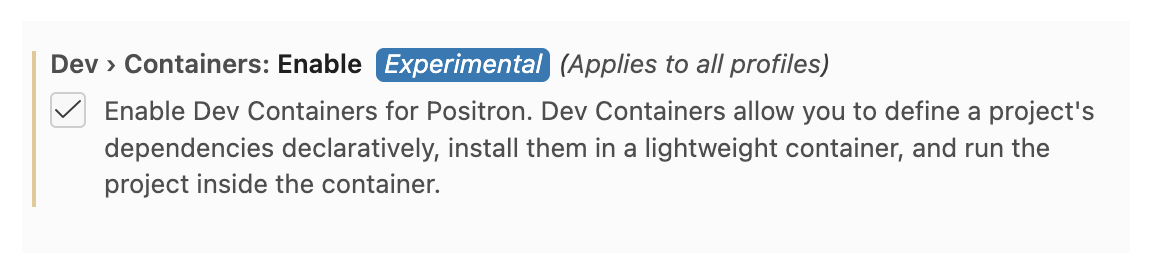
Or put this in your settings.json:
{
    "dev.containers.enable": true
}
Use
Opening a folder in a container
Open a folder that contains a .devcontainer.json file. You’ll see a prompt like this:
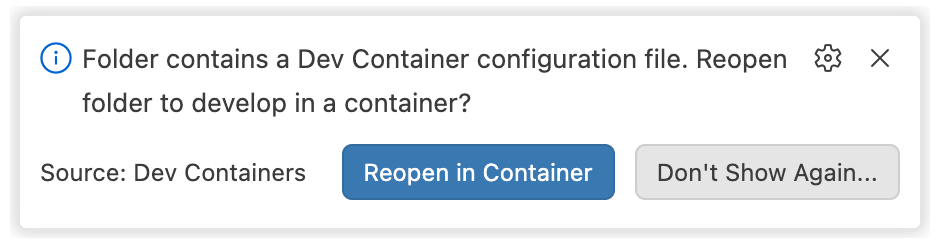
Click the notification to reopen in a container.
Alternately, if you’ve dismissed or disabled the notification, use the command Dev Containers: Reopen in Container.
Attaching to a running container
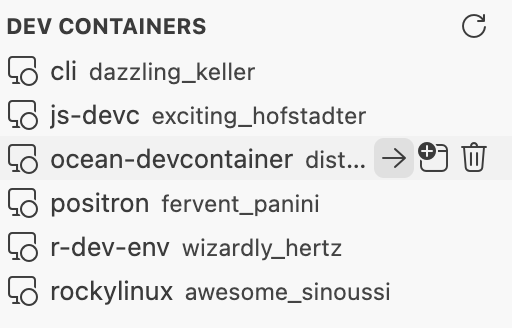
- Open the Remote Explorer view
- Expand the “Dev Containers” section
- Right-click a running container and select “Attach in Current Window” or “Attach in New Window”, or use one of the buttons on the right
Rebuilding a container
When you’ve made changes to your devcontainer.json or Dockerfile:
- Dev Containers: Rebuild Container - Rebuild using cache
- Dev Containers: Rebuild Without Cache - Full rebuild from scratch
- Dev Containers: Rebuild and Reopen in Container - Rebuild and automatically reopen
Developing inside a container
Positron’s dev containers feature uses a subset of the commands and settings available in VS Code. Read the VS Code guide on developing inside a container for more information.
Limitations
Unlike the Code OSS core, VS Code’s Dev Containers support is not open source. It is provided by a proprietary, closed-source extension released under a commercial license. Consequently, Positron’s implementation is novel, and does not have all the same features. Specifically, it has the following limitations:
- Positron does not support musl-based Linux distributions (such as Alpine) (tracking issue); the container must run a version of Linux that Positron already supports.
- Only single-container configurations are supported (no
docker compose). - No tools or templates are supplied for creating or authoring
devcontainer.jsonfiles. - Only one container is supported per project.
- Docker volumes are not supported, just regular mounts.
- In the MRU, dev containers show up with the remote rather than local path (e.g.,
/workspaces/foo). - VS Code container customizations are not supported.
RemoteCommandis not supported.- Containers are not supported in environments that are already remote (such as Remote SSH, WSL, and Posit Workbench).
- Container management features (see/attach to running containers) are not available when already inside a container.
Remote sessions
Once inside a container, your session will behave similarly to a Remote SSH session, as though you had started an SSH server on the container and used Remote SSH to connect to it. See Remote SSH for more information.