Completions
Code completions are text suggestions that appear inline as you type in an editor. These suggestions can be lines or blocks of code based on the context of what you’re writing. Other names for code completions include inline suggestions, ghost text, or inline completions.
Completions are powered by Posit AI Pass or GitHub Copilot. Ensure you have added one or both of these as a language model provider:
Using code completions
When code completions are available, ghost text appears in your editor as you type. The ghost text represents the suggested completion.
Interact with suggestions by:
- Pressing the TabTab key to accept the entire suggestion.
- Pressing to accept the suggestion word-by-word for a single-line suggestion, or line-by-line for multi-line suggestions.
- Pressing EscEsc or continuing to type to dismiss the suggestion.
Commands
The following commands apply to both providers:
| Command | Description |
|---|---|
| Snooze Inline Suggestions | Pause inline suggestions temporarily for a specified duration. |
| Cancel Snooze Inline Suggestions | Resume snoozed inline suggestions immediately. |
Posit AI Next Edit Suggestions (NES)
When using Posit AI Pass as your completions provider, code completions take the form of Posit AI Next Edit Suggestions (NES), a preview feature. Posit AI NES proposes edits anywhere in the file, not just at the cursor. It responds to your recent changes, including insertions, deletions, and modifications to existing code.
Posit AI NES suggestions appear inline in the editor. You can accept, navigate, or dismiss them using the same keybindings as other code completions.
Enable
Posit AI NES is enabled by default once you have signed in to the Posit AI Pass provider. No additional setting changes are required.
Restrict to specific languages
Posit AI NES skips plaintext, markdown, and scminput unless you configure otherwise. Use the nextEditSuggestions.enabled setting to change which languages Posit AI NES applies to.
Disable
To disable Posit AI NES, do any of the following:
- Sign out of Posit AI Pass in Positron via the Accounts menu or the Accounts: Manage Accounts command. This also affects chat and other features that rely on the account.
- Set
nextEditSuggestions.enabledto{ "*": false }to disable Posit AI NES everywhere. To disable only some languages, set those entries tofalse.
To exclude specific files from Posit AI NES regardless of language, use the shared aiExcludes setting.
GitHub Copilot
When using GitHub Copilot as your completions provider, code completions appear as ghost text at the cursor position as you type. To learn more, visit the GitHub Copilot inline suggestions documentation.
GitHub Copilot also has its own Next Edit Suggestions, separate from the ghost-text completions described here and from Posit AI NES. It is available whenever you sign in to GitHub Copilot as a provider.
Enable
GitHub Copilot completions are enabled after you sign in to the GitHub Copilot provider. No additional setting changes are required.
Restrict to specific languages
GitHub Copilot completions skip plaintext, markdown, and scminput unless you configure otherwise. Use the github.copilot.enable setting to change which languages Copilot completions apply to.
Disable
If you have enabled GitHub Copilot as a model provider, you can disable completions by doing any of the following:
- Set
github.copilot.enableto{ "*": false }to disable both ghost-text completions and Next Edit Suggestions, without having to sign out. To disable only some languages, set those entries tofalseinstead of*. - Set
github.copilot.nextEditSuggestions.enabledtofalseto disable Next Edit Suggestions on their own, while keeping ghost-text completions on. - Sign out of GitHub in Positron via the Accounts menu or the Accounts: Manage Accounts command. This also affects other features and extensions that rely on the GitHub account. Without a signed-in GitHub account, GitHub Copilot Chat cannot be used, and GitHub Copilot cannot provide completions, Next Edit Suggestions, or be used as a provider for Posit Assistant.
To exclude specific files from Copilot completions regardless of language, use the shared aiExcludes setting.
Status bar icon
The Assistant status bar icon indicates the current state of GitHub Copilot completions.
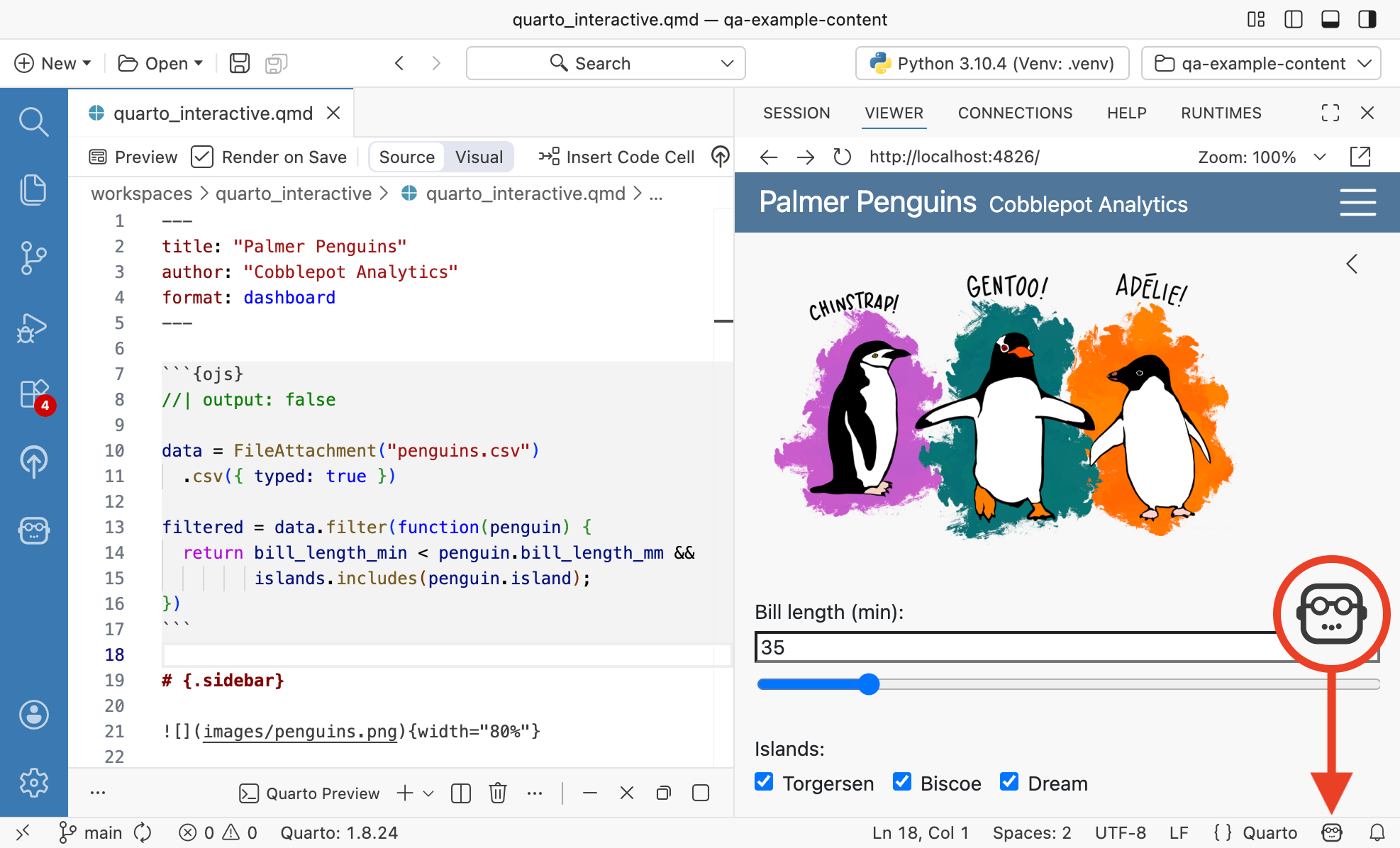
To manage Copilot completions using the status bar icon:
- Select the status bar icon to open the menu.
- From the menu, enable or disable completions for the current file type or for all files, or view the remaining time for snoozed completions.
Troubleshooting
If you are not receiving suggestions:
- Check that
ai.enabledis not set tofalse. When it is, Positron disables all AI features including code completions, regardless of other settings. - Confirm you are signed in to your completions provider in the language model provider configuration.
- Check that your completions provider’s per-language settings do not disable the current language (see Posit AI Next Edit Suggestions or GitHub Copilot).
- Check that
positron.assistant.aiExcludesdoes not match the current file. - Run the AI: Create Diagnostic Report command to see your providers, feature settings, and recent completions logs in one report. See AI diagnostics.