Data Explorer
The Data Explorer complements code-first exploration of data. It displays data in a spreadsheet-like grid, temporarily filters and sorts data, and provides useful summary statistics directly inside Positron. The goal is not to replace code-based workflows. Instead, the Data Explorer supplements them with ephemeral views of the data or summary statistics as you explore or modify the data via code.
The Data Explorer can be used to view raw data files (CSV, Parquet, etc.) in your Positron workspace as well as dataframes in your active Python or R sessions.
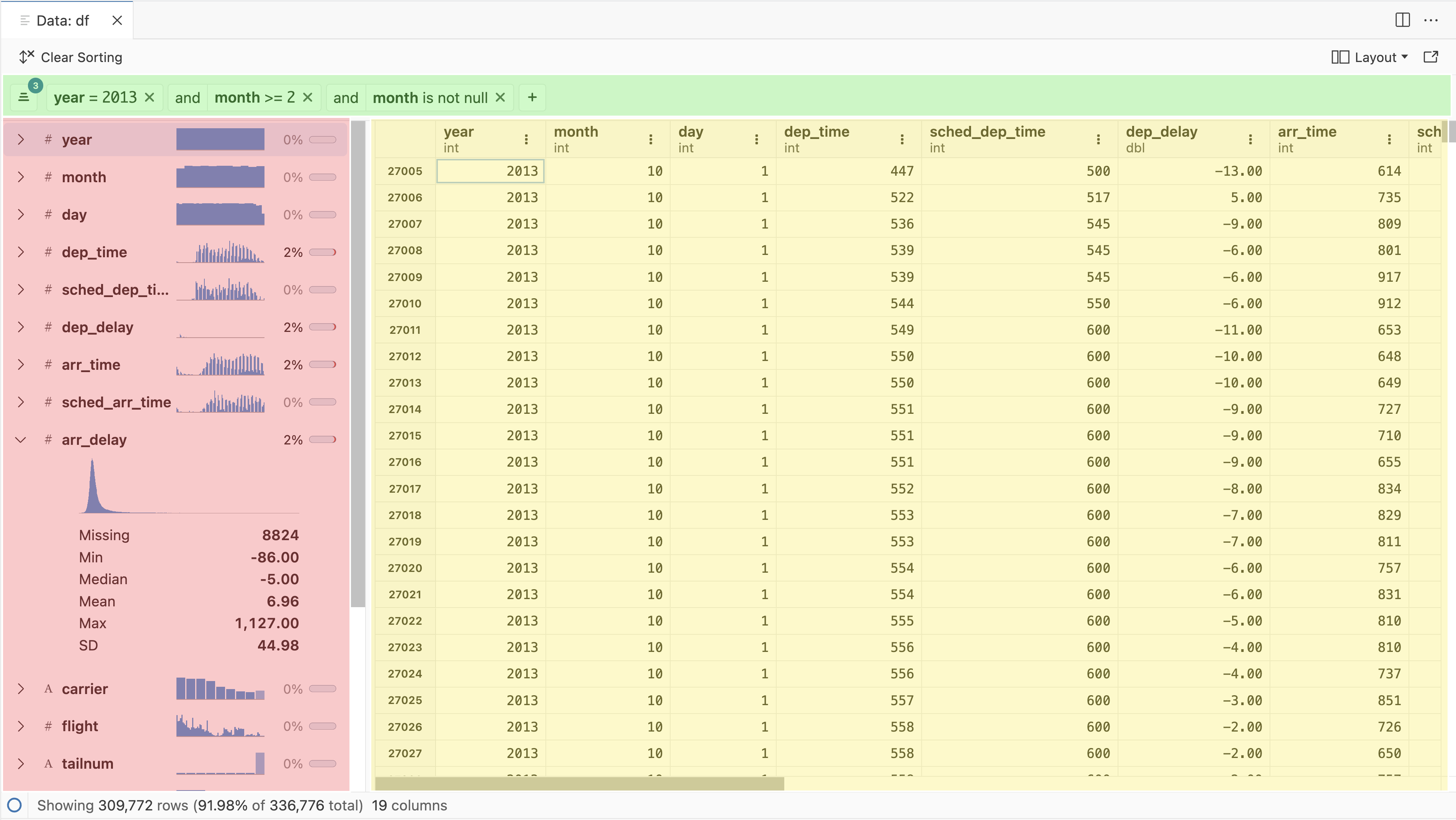
The Data Explorer has three primary components:
- Data grid: Spreadsheet-like display of the individual cells and columns
- Summary panel: Summary statistics for each column in the dataset
- Filter bar: Ephemeral filters for specific columns
Opening the Data Explorer
There are a few ways to open the Data Explorer. If you want to look at data you have loaded into memory already, you can navigate to the Variables pane and select the icon for a specific dataframe object.
You can also open the Data Explorer from your editor (.py, .R, .ipynb, or .qmd files). Use the View Data Frame at Cursor command from the Command Palette or the right-click context menu. This functionality is also available as a code action via the icon in the editor gutter or via the menu.
Using code or the console, you can also run one of the following commands:
- In Python:
%view dataframe label - In R:
View(dataframe, "label")
In Python, you can also use the %view magic with expressions, for example %view df[df['column'] > 10]. In R, you can compose the View function with expressions using pipe syntax:
df |> mutate(doubled_column = column * 2) |> View()You can directly open .csv, .tsv, .parquet, and .xlsx files (using DuckDB) by selecting a file in the File Explorer or using the Command Palette.1 You can also open compressed CSV, TSV, and Parquet files.
When you view a data file, the Import Data button in the action bar opens the Import Data dialog, which generates the Python or R code to load that file into a session and can run it for you.
Opening CSV files as plain text
After opening a CSV file in the Data Explorer, you can view it in the text editor. Select the Open as Plain Text File option in the top action bar.
Footnotes
Use File Options in the action bar to configure how DuckDB parses a
.csvor.tsvfile.↩︎